Install once.
Every agent
uses your browser.
Chromium, webclaw, and MCP in one installer. No separate Chrome extension setup — the agents you already use can read, click, type, and download.
Unsigned build: on macOS right-click → Open; on Windows More info → Run anyway.
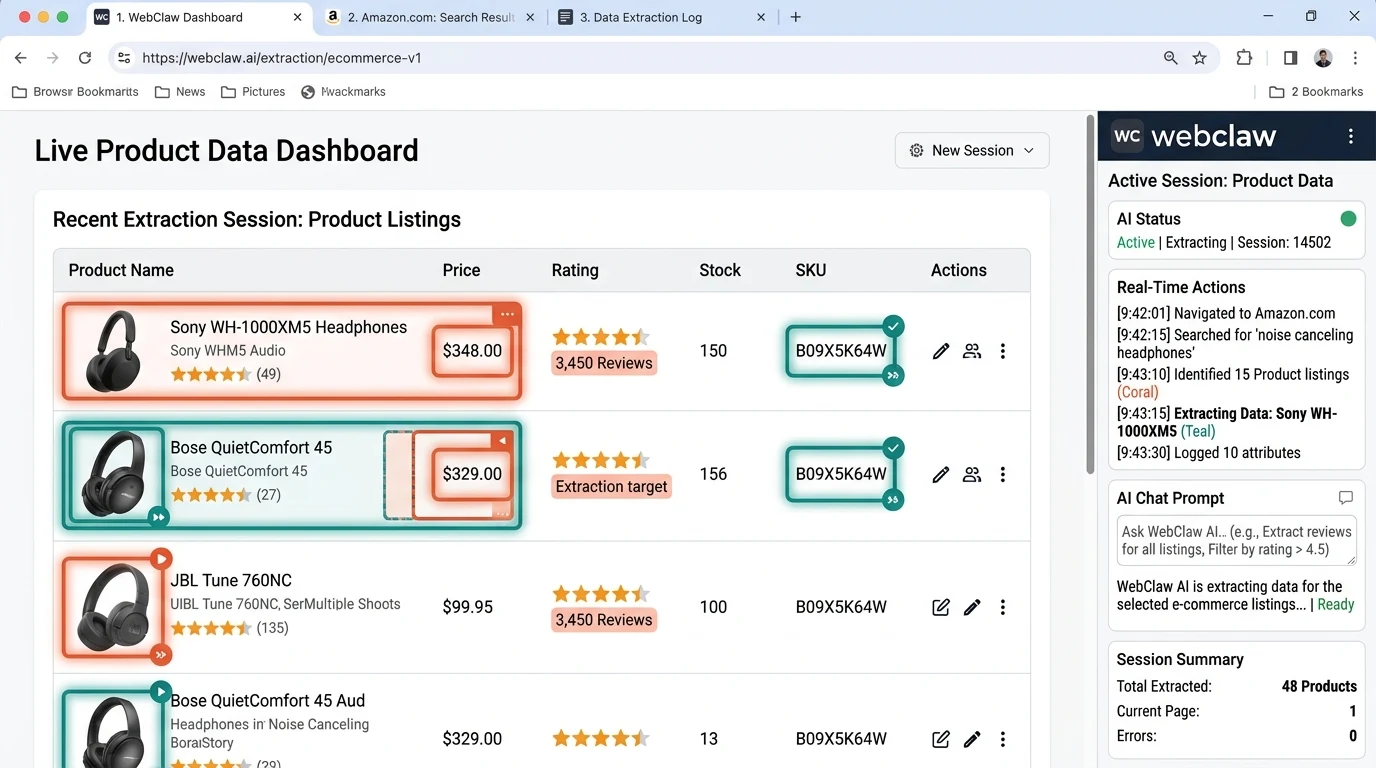
Just three steps
Install, restart the agent you already use, then ask in one sentence.
Open the dmg on macOS or run Setup.exe on Windows. Chromium, webclaw, and MCP are installed together.
Fully quit and reopen Claude Code, Claude Desktop, Cursor, Codex, OpenCode, Gemini, VS Code, or Windsurf. The dureclaw MCP is registered automatically.
Use webclaw to open Naver and take a screenshot.
Reading, clicking, typing, and downloads are handled for you.
Everything you need in one browser
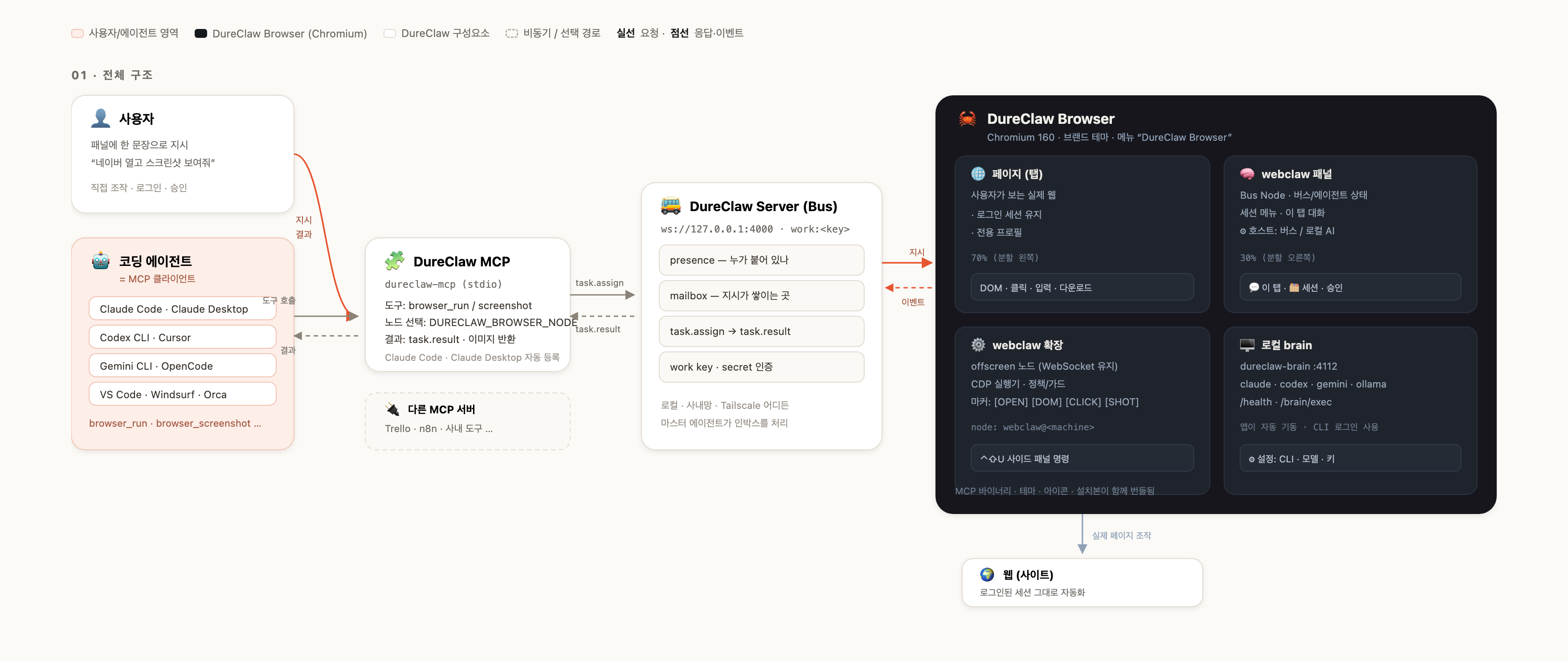
The browser is the hand, the bus is the nerve
How the user, coding agents, MCP, the bus, and the browser connect — in one picture.
Three things to know
How do logins work?
macOS starts with a dedicated profile, separate from your Chrome. Sign in once to the sites you need. Windows can import your existing Chrome profile; if Chrome 137+ App-Bound Encryption prevents the session from carrying over, sign in once in the new browser.
Can I keep using my own Chrome?
Yes. You can still load the webclaw extension bundled with the DureClaw Server app into Chrome, Edge, or Whale. Server app setup →
Why does a signing warning appear?
This build is unsigned. On macOS choose right-click → Open; on Windows choose More info → Run anyway in SmartScreen.