
← Use Cases

Within your security policy,
your company’s computers as one team

Programs and licenses stay on their original PCs, and the network stays your internal network. No inbound ports are opened; only the work is sent to that computer.

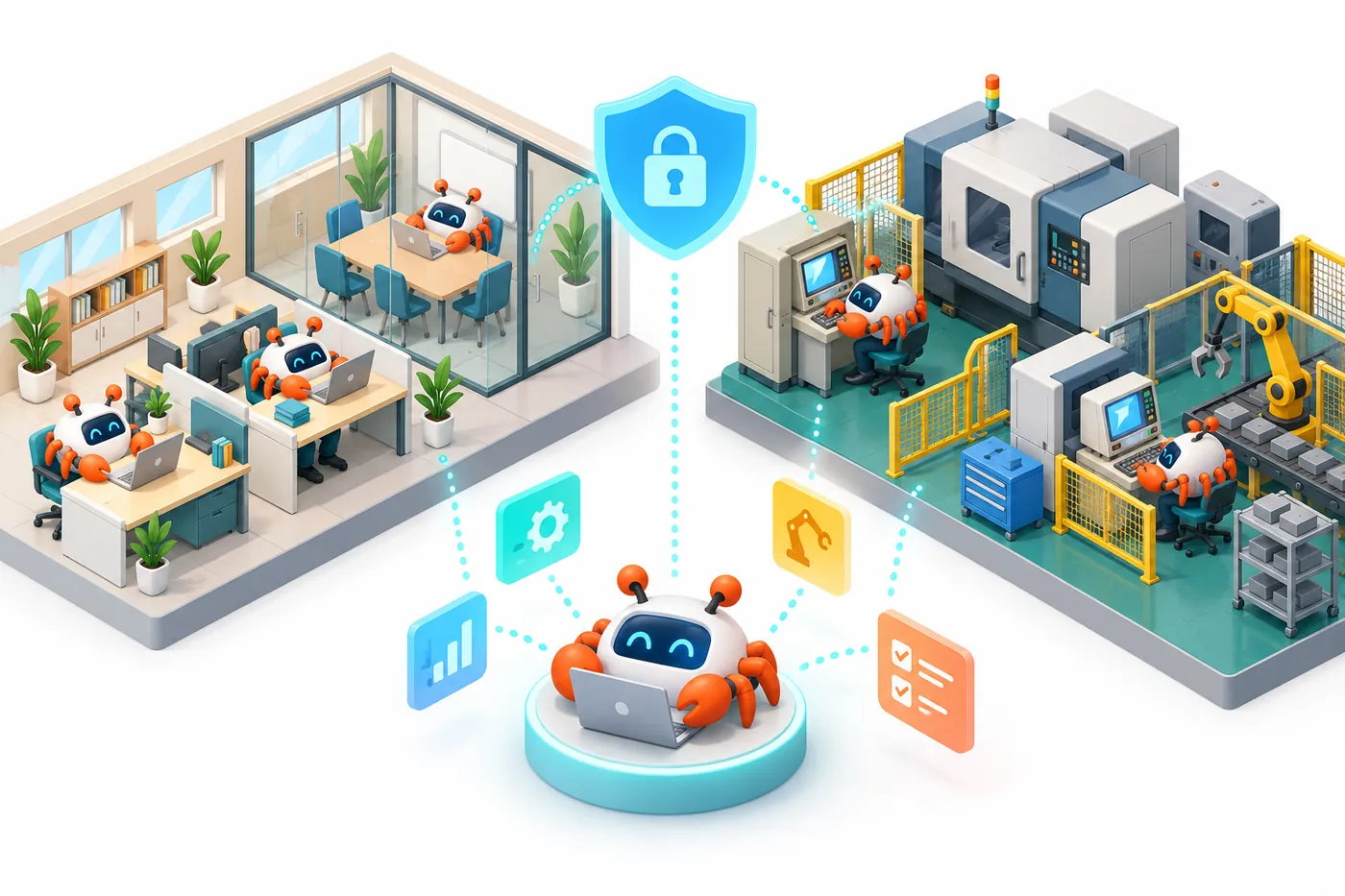
Illustration of crab robots running computers together in an office and on a factory floor
Companies & Organizations

If these sound familiar

  • That program only lives on that one PCPrograms tied to a specific PC by licenses, certificates or dedicated hardware can’t be moved or installed on several machines.
  • Opening remote access is a burdenOpening SSH or Remote Desktop means negotiating firewalls, accounts and permissions, and on Windows, automation stops at UAC.
  • External cloud is not an optionInternal and dedicated network policies make it hard to adopt tools that route through external relay services.
At a glance

Split operations work across Chrome on several PCs

Illustration of 5 PCs — in the company office, at home, in a workshop, at an overseas branch and in a separate space — each using Chrome to simultaneously manage own-store products, check marketplace orders, check inventory, review the global store and check ad performance, with results gathered on the DureClaw screen

Chrome on many PCs, as one e-commerce operations team

E-commerce operations pile up repetitive work on every channel. Install the DureClaw extension (webclaw) in Chrome on each PC, and the already-logged-in browsers take on each channel’s tasks at the same time.

  1. Your existing PCs — use the PCs and logged-in Chrome you already have
  2. Split by channel — own-store product management, marketplace orders and shipping, inventory checks, global store pricing and ad performance, each run on a different PC
  3. Results at a glance — order, inventory, product and ad results come together on one screen
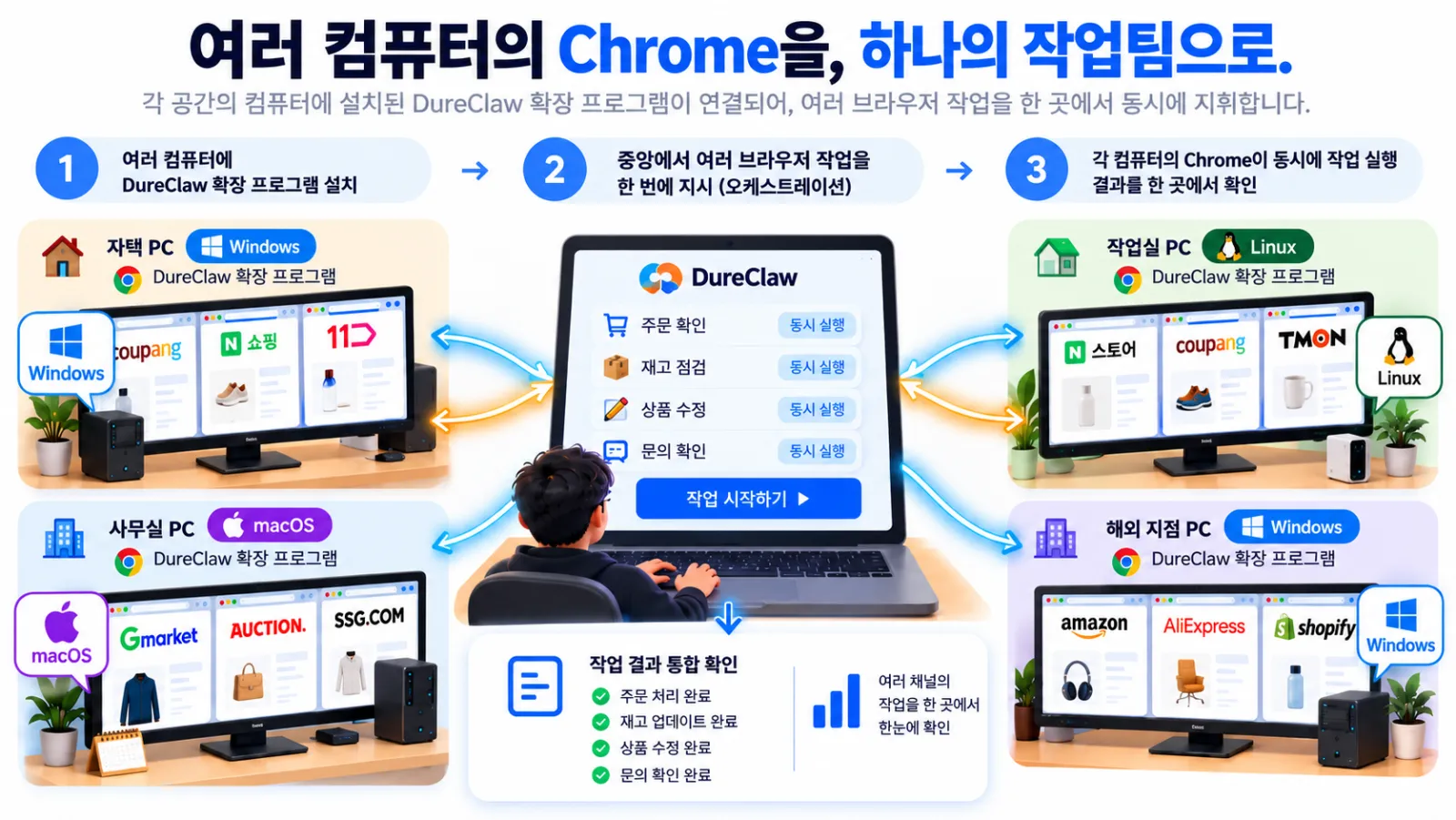
3-step flow illustration: Chrome on a home Windows PC, an office macOS PC, a workshop Linux PC and an overseas-branch Windows PC, connected through the DureClaw extension, simultaneously checking orders, checking inventory, editing products and checking inquiries

Chrome on many computers, as one work team — 3 steps

Different operating systems are fine. Windows, macOS or Linux — anywhere with Chrome joins the same team.

  1. Install — install the DureClaw extension in Chrome on each computer
  2. Instruct — from the center, assign "check orders, check inventory, edit products, check inquiries" in one go
  3. Review — see the results each Chrome ran in parallel, all in one place
Cases

How it has actually been used

Badges show the level of evidence — Measured Real case Example scenario

Adding AI to existing systems2

Example scenario
Mac (AI)webclaw browserdeskclaw desktop

Keep your web ERP as is, and add AI and automation

SituationLong-used web ERP and groupware systems have no API, or it is locked, so new automation or AI can’t connect and people copy data off the screen by hand.
With DureClawwebclaw reads ERP screens, clicks, fills in forms and downloads files in the already-logged-in browser. For installed clients, deskclaw operates the screen.
ConnectingAI on a GPU server analyzes data pulled from the ERP, then enters the results back into ERP forms or turns them into an Excel report on Windows. No need to replace the ERP or ask the vendor for an API.

There is no record yet of applying this directly to an ERP. Using the same method, we actually downloaded and organized 12 assignments from a logged-in university LMS (webclaw), and actually demonstrated recording and replaying a desktop program (deskclaw). Check your account and permission policies and the ERP’s terms of use before adopting.

Source — Browser agent comparison — real LMS session · README — deskclaw
Real case
MacWindows shop-floor PC

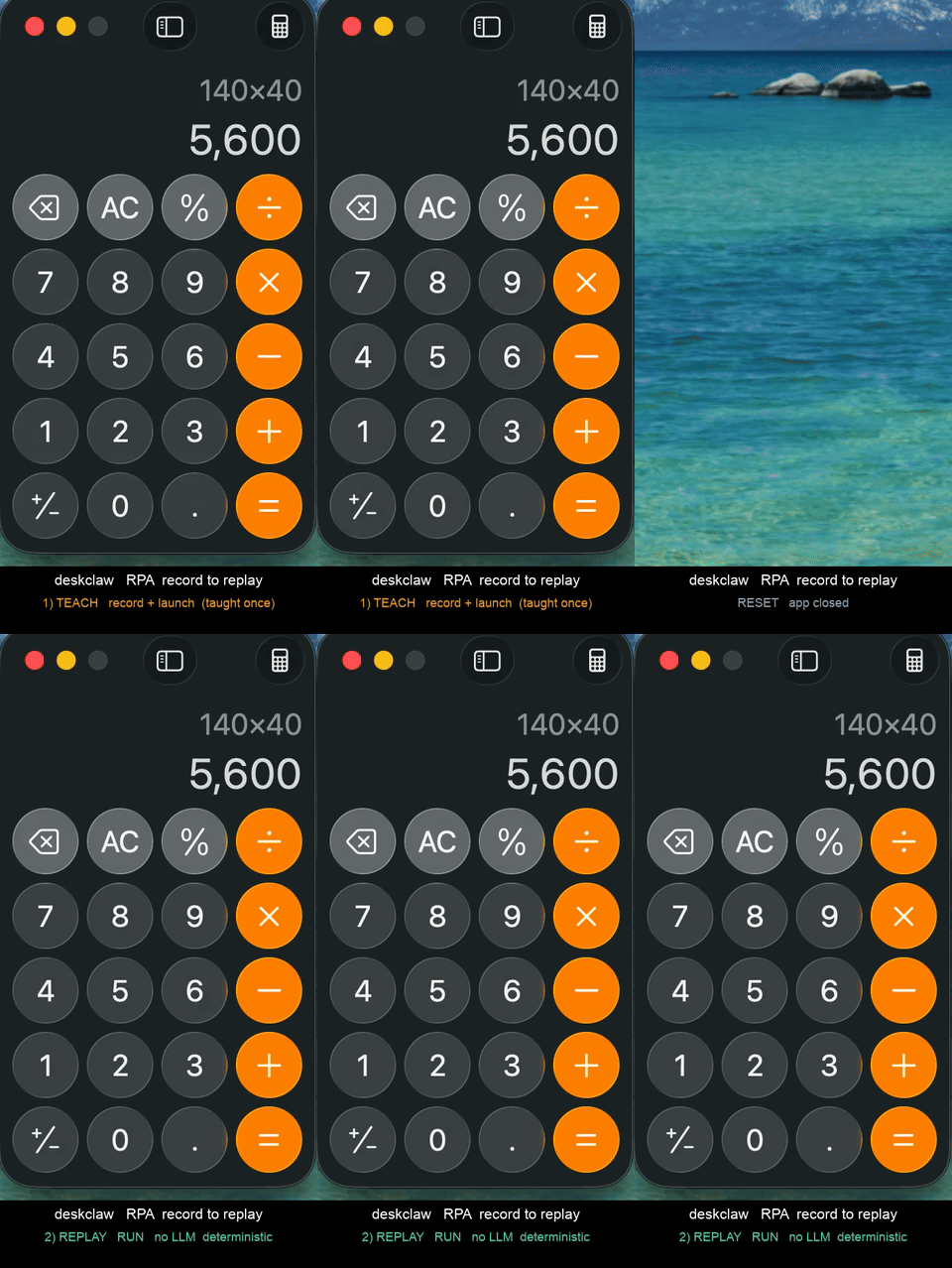
Teach a shop-floor PC screen with no API once, then repeat

SituationWith screen-only programs such as MES and ERP, people click and type every time.
With DureClawDemonstrate it once on a deskclaw node to record it, and later runs replay the same actions exactly, without calling AI.

Source — README — shop-floor PC GUI automation

Actual screen of deskclaw replaying recorded desktop actions
Actual system capture — teach once, and [RUN] replays without AI

Dedicated programs & licenses2

Real case
MacWindows (Office, Visual Studio)

Send the work to the PC that has the program

SituationSome programs are installed or registered only on specific PCs — Office, business sites that require certificates, development tools.
With DureClawWhen each node connects, it announces the programs installed on its PC as 'capabilities'. The master picks a PC with the needed capability and sends it the task; if the task gets stuck, it reassigns it to another node with the same capability.
In practiceA Windows node in production reports Word, Excel, PowerPoint, Outlook, Access and Visual Studio as capabilities.

Source — capability detection capabilities.ts · README — Why a team?

Example scenario
MacLicensed PCdeskclaw

Automate repetitive work while respecting license terms

ConceptThe software is not copied or moved to another PC. The licensed PC runs it as before; DureClaw only passes work and results back and forth.
HowIf there is a command line, use [SHELL]; if there is only a screen, deskclaw records and replays the clicks a person used to make. Usage records stay on that PC.

Note: whether unattended/automated execution or remote use is allowed differs by each software’s terms (EULA). Be sure to check the license terms before adopting.

Source — README — shop-floor PC GUI automation

Security & internal infrastructure3

Measured
MacWindows 11

Build on an internal Windows PC without opening ports

SituationWe needed to build a Python program into an exe on a Windows 11 PC with an administrator account and retrieve it.
With SSHFour authentication attempts failed in a row, and in the end it was blocked by the UAC approval dialog, running not a single task.
With DureClawWith no extra setup, all 5 tasks succeeded (collect info → create files → build → retrieve → screen capture).
0extra setup
5/5tasks succeeded
14.3stotal time
7.35MBbuilt exe

The report’s honest limitation: SSH was at a disadvantage mainly because of the 'Windows + administrator account + unattended execution' combination. In a Linux↔Mac environment with keys already in place, the per-task cost is similar.

Source — DureClaw vs SSH experiment report §2–4, §6

Real case
Internal server/MacInternal PCs

Entirely inside your internal network, with no external cloud

SetupThe server (bus) is installed directly on a company Mac or server. Nodes on the same internal network find the server automatically (oah.local) or connect to an address you specify.
EffectInstructions and results travel only between the server and nodes inside the company. No separate cloud account or external relay service is needed.

If you use Claude as the AI brain, instructions are sent to Claude while it makes decisions. To keep that part internal too, see the air-gapped setup below.

Source — Private network setup guide

Example scenario
HeadscaleInternal serverInternal AI model

Dedicated and air-gapped networks: self-host the Tailscale part too

ConceptIf you need a private network linking several sites, build the same kind of encrypted network with a self-installed control server (e.g. Headscale) instead of Tailscale. It uses the same address range as DureClaw’s auto-approval range (100.64.0.0/10).
AI kept internal tooTo keep decisions from leaving as well, use a local model on an internal GPU server (Ollama backend) as the brain.

There is no record yet of verifying this directly with Headscale or a fully air-gapped setup. It is presented only as a possible configuration.

Source — Private network setup guide

Operations3

Real case
MacBookMac mini (remote)

Remotely diagnose and fix a computer you can’t reach

SituationOn a Mac mini at another location, all AI tasks stopped and the messenger bot stopped responding.
With DureClawBy sending commands from a MacBook, we found and fixed three problems remotely: a config file error, a wrong message format, and a 27-hour-old config cache.
3remote fixes
0site visits

Source — Remote agent operations case

Measured
ServerAll nodes

Every computer comes back on its own after a server restart

SituationWe restarted the production server several times while deploying features.
ResultEach time, every connected node (Linux builder, Windows, browser nodes, etc.) reconnected automatically with no human intervention. Online status shows up right away on the dashboard.
0manual reconnects

Source — DureClaw vs SSH experiment report §4-1

Example scenario
Windows micGPU serverMac

From meeting recording to report, automatically

ConceptA Windows PC records, a GPU server transcribes and summarizes, and a Mac turns it into a report document.
Key pointA flow that chains what each device does best with a single instruction. No measurements yet.

Source — README — Scenarios born from combined constraints

What you need

Here’s the setup

Admin Mac / internal serverServer app + Claude Code. Instructions come only from here; the server is installed in-house.
Licensed PCJust add a node to the PC that has the program — the installer connects it automatically at login.
Shop-floor PCScreen automation with a deskclaw node.
NetworkAutomatic discovery on the same internal network; between sites, Tailscale or a self-hosted option (Headscale, etc.).

Installation guide by platform →

Start now with a single Mac

Install the server app, then add your idle computers to the team one by one.